![iconosquare_logo_blue_full_1024px.png]](https://support.iconosquare.com/hs-fs/hubfs/Images/Logos/iconosquare_logo_blue_full_1024px.png?width=150&height=50&name=iconosquare_logo_blue_full_1024px.png)
We've updated navigation across Iconosquare to make it easier to focus on the content you're working with and switch contexts more efficiently.
What's changing?
Navigation controls are now displayed more contextually throughout the platform. Instead of showing the same navigation elements everywhere, Iconosquare now surfaces the controls that are relevant to the page you're viewing.
Contextual date filtering
On pages that support date-based analysis, you'll see a date picker directly within the page context.
This helps you:
- Focus on the relevant reporting period.
- Access date filtering where you need it.
- Reduce navigation clutter on pages where date filtering isn't applicable.
Unified social profile and group navigation
Relevant pages now include a unified contextual navigation bar for your currently active social profiles or group.
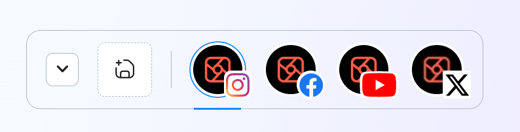
This makes it easier to:
- Understand which profiles or group you are currently working with.
- Switch between views within the same active selection.
- Keep your workspace focused while exploring different data views.
Using the new dropdown
The new dropdown centralizes selection management for social profiles and groups in a single control.
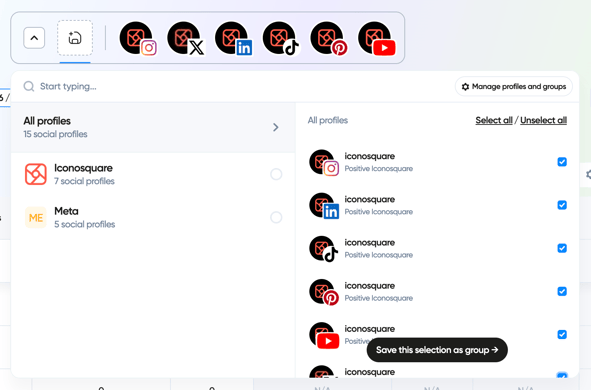
From this menu, you can:
- Switch to a different group or social profile set (change your active selection).
- Create a new group from your current selection.
- Edit an existing group.
Creating a group from your current selection
If you've selected a set of social profiles that you frequently use together, you can now save that selection as a group directly from the dropdown.
To create a group:
- Select the social profiles you want to work with.
- Open the dropdown.
- Choose Save this selection as group.
- Enter a name and save.
Your new group will be available whenever you need to reuse the same set of profiles.
Editing an existing group
You can now access group management directly from the dropdown.
To edit a group:
- Open the dropdown.
- Select the group you want to update.
- Choose Edit group.
- Update the group's name, avatar, or social profiles.
- Save your changes.
This allows you to manage groups without leaving your current workflow.